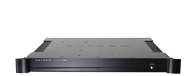
The AVM 20 is designed to be hardware and software upgradeable. This means that all AVM 20's can be upgraded to the new v2.1x Feature Set.
Although the v2.1x software is free, it requires the memory and processing power available in our 56367 DSP Board. This new v2.1x software will not work in AVM 20's with 56366 DSP Boards used with software v1.12 or earlier.
Press the STATUS button on the Front Panel and note your software version:
If your software is v1.16 or higher, you can download and install v2.xx (below)
If your software is v1.12 or lower, your AVM 20 requires our DSP Board upgrade
DSP BOARD Upgrade (required for v1.12 or lower)
- Our AVM 20 v2 DSP upgrade is available for $300 US (tax if applicable and shipping extra). Your AVM 20 must be sent to the factory.
- To arrange for the upgrade, please call 905-362-0958 or email sfitech@sonicfrontiers.com. Payment by VISA or MasterCard only.
DOWNLOADING Software from Web to your computer
- Using your computer's mouse, right click on the download link below. You will then be asked where to save the v2.1x zip file - save it to your computer's desktop.
- Once download is complete, unzip the file on your desktop by double clicking it. If asked where to save this file, create folder called AVM 20 Software Update and save. You may then delete the downloaded zip file.
Download Software version v2.21
Windows 98, ME, NT, 2000, XP
File Size: 544 KB
Software v2.1x is a major upgrade and requires a new owners manual to fully understand and operate. Click here to go to the AVM 20 v2.1x Owners Manual download page.
Links to Popular Unzipping Programs for Windows:
Stuffit Expander: http://www.stuffit.com/expander/ (recommended)
WinZip: http://www.winzip.com/ddchomea.htm
Pkunzip: http://www.pkunzip.com/downloads/
Rar and WinRar: http://www.rarlab.com
WinAce: http://www.winace.com
Mac users: This software can be installed through a Windows emulator and a USB to serial adapter (adapter's driver program must be properly installed)
Archive Section:
Download Software version v2.09 (Windows 98, ME, NT, 2000, XP)
UPLOADING Software from your computer to your AVM 20
(for Windows 98, ME, NT, 2000, XP)
Note: If your computer does not have a serial port but has a USB port, you will need to use a USB-to-serial adapter (and its driver program). Use a Windows-certified adapter only. If, when you install the driver program, a Windows message appears indication that the driver is not certified, do not use that adapter. Some are known to be inadequately developed, causing errors to be downloaded into the preamp, freezing its operation. Tech support will not cover repair under warranty in these cases.
Also, the Software Installer scans COM1 to COM4 to see which one is connected, so if the adapter is on a virtual port higher than this, change it to one within COM1 to COM4.
Important: Before running the Installer, check your computer's power management settings - particularly if using a laptop - to ensure that the Software Update does not get interrupted while running.
1. Ensure your current AVM 20 Setup configuration has been saved.
2. As an additional precaution you may want to save your settings to your PC. This is quick and easy to do with Settings Saver (located in the Custom Installation section of our web site).
3. Turn Off the power switch at the rear of your AVM 20, or disconnect the power cord to prevent the possibility of static discharge when the serial port is connected. Your tuner presets, speaker-level settings, bass/treble, etc., are automatically written to memory if the line voltage is disconnected or a power failure occurs.
4. Using the Serial Cable, connect your computer to the AVM 20 via the 9-pin female RS232 (AVM20 Side) port on the units Rear Panel. As long as you can connect your computer to the RS232 port, updating does not require moving the AVM 20 or disconnecting it from your system. Note: If your computer does not have a serial port but has a USB port, you will need to use a USB-to-serial adapter (and its driver program).
5. The rear power switch must then be turned On and the AC cord of the AVM 20 must be plugged in. MAIN, ZONE 2, or ZONE 3 power does not have to be turned on.
6. Open the AVM 20 Software Update folder. The 'Read Me First' file lists software changes for this Version and outlines the most current instructions on how to load the Software Upgrade into your AVM 20.
7. Click on the file called AVM 20 Installer v2.0x in the AVM 20 Software Update folder. Click on the Install Upgrade Now button. In a few minutes the install and verification will be completed. The AVM 20 will then turn itself Off for a forced reboot.
8. Note: The Installer will automatically cycle through a number of steps. Do not close the Installer until all of these steps are completed and the message at the bottom of the installer window says programming done
9. Once complete, if you wish you may disconnect the serial cable from the Rear Panel.
10. Turn power On and adjust the current time (if necessary).
Restore Settings?
You do not need to Restore or Recall any settings after installing new software. The AVM 20 will retain the settings that were in use before the Update, with the exception of day and time which will be set according to your computer’s day and time settings. If readjustment is required, see section 7 of the Operating Manual.
Troubleshooting
RTS/CTS must be turned off in the setup menu (item 9g. set to 'None'), otherwise the installer will not be able to communicate with the AVM 20.
If, after several attempts, the Installer keeps returning a message that says "AVM 20 Not Found", restore Factory Settings in the Setup Menu, try installing again, and reload User Settings once the new software is installed.
If that doesnt work, make sure that the serial port on your computer is not being used by another application, such as docking stations for personal organizers. If the serial port is already in use, you must go into the application that is using it and turn off the serial port.